-
-
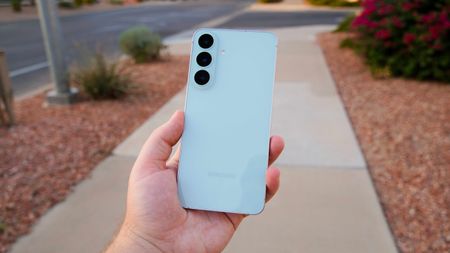 Still the kingSave a huge $220 on the Samsung Galaxy S26 FE at Verizon
Android Central Approved - Sponsored Offer Verizon
-
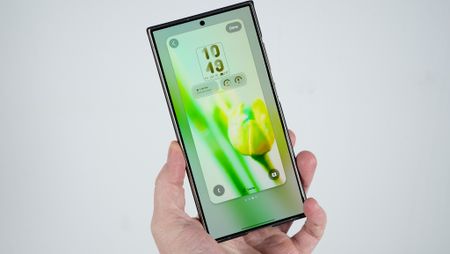 More problemsBattery drain in One UI 9? Some Galaxy S24 users are having a rough time
 -
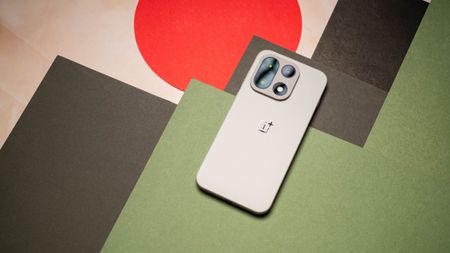 ColorOS Takes the WheelOnePlus rolls out Android 17 to the OnePlus 15 ahead of schedule
 -
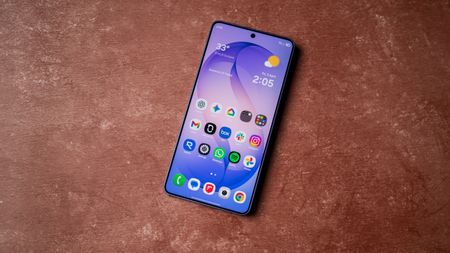 IssuesThat's a problem: Galaxy S26 Ultra suffers a horrendous setup bug after One UI 9
 -
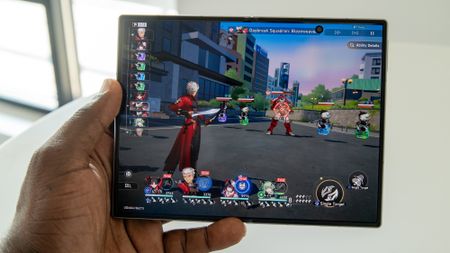 Folding, but wideFoldable displays are taking over, and research says it's the year of the wide folds
 -
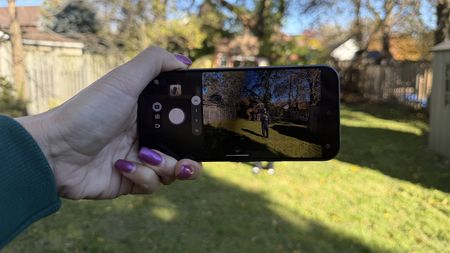 It works like, well, magicMagic Capture is the best feature in the Google Pixel 11 series -- and one of the best camera features in a decade
 -
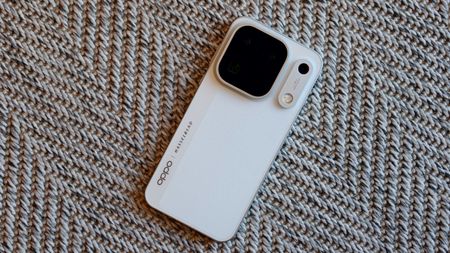 Oppo goes all-outOppo's Find X10 Pro Max goes all out with three 200MP cameras and a massive battery
-


-
-
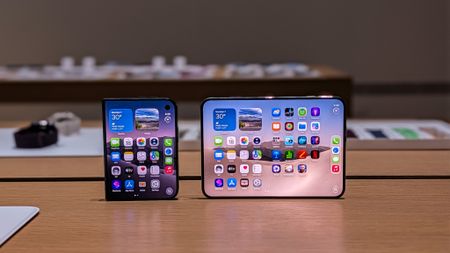 Google welcomes the competitionGoogle thinks the iPhone Duo could actually be good news for Android foldables
 -
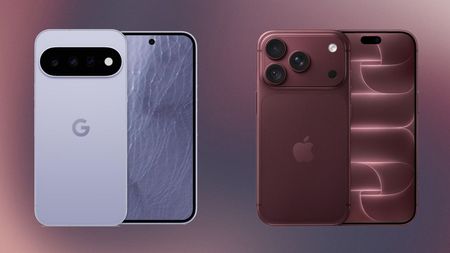 iOS vs. AndroidApple iPhone 18 Pro vs. Google Pixel 11: The best of iOS faces the best of Android
 -
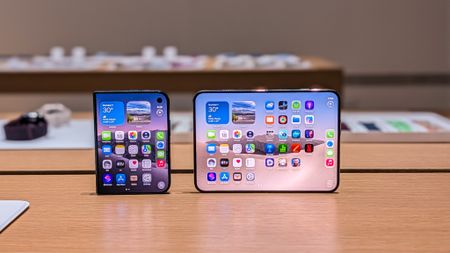 I went hands-on with the iPhone Duo, and I'm genuinely excited
 -
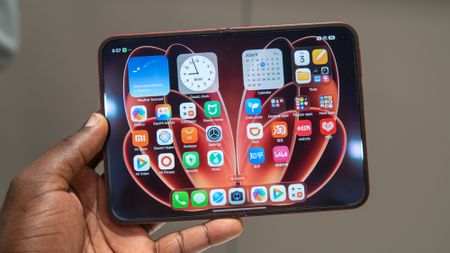 Wide and proudApple iPhone Duo vs. Xiaomi 18 Fold: Software matters
 -
 Android inspiration5 things Android should steal from the iPhone Duo and iPhone 18 Pro
 -
#loyalApple iPhone Duo vs. Samsung Galaxy Z Fold 8: It comes down to just one thing3 Comments
-
 Welcome to fold6 iPhone Duo and iPhone 18 Pro features Apple copied from Samsung, Motorola, and Google
 -
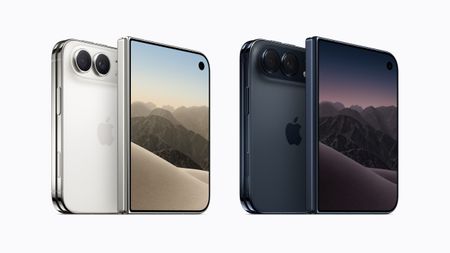 Cheeky and ruthlessNew iPhone Duo foldable gets wild, cheeky responses from Samsung and... Duolingo???
 -
 FinallyThe iPhone Duo is here, and it will convince you to buy a foldable
-


-
-
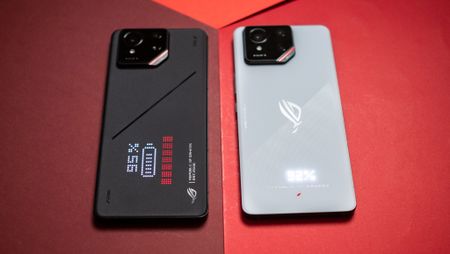 Bye for now, ASUSI'm going to miss new ASUS phones in 2026 for this one reason
 -
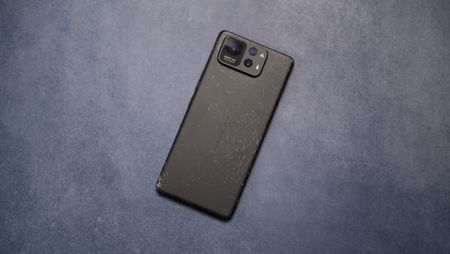 Finally!Asus ROG Phone 9 and Zenfone 12 Ultra users can now upgrade to Android 16
 -
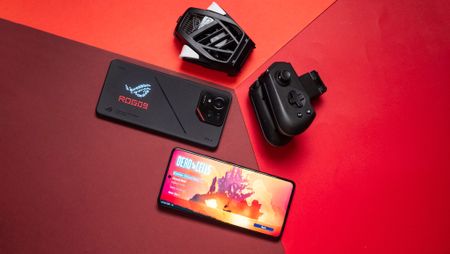 Game onASUS ROG Phone 9 Pro review: Ultimate bragging rights
 -
ContradictionsASUS Zenfone 12 Ultra review: I really like this phone, but you shouldn't buy it
-
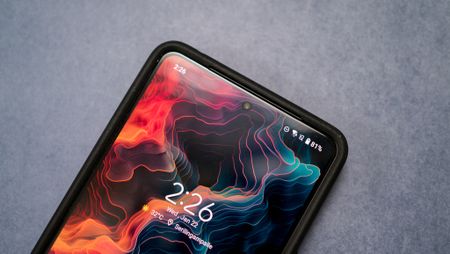 Zen-aestheticASUS reveals the Zenfone 12 Ultra with a spotless design and a powerful flagship chip
 -
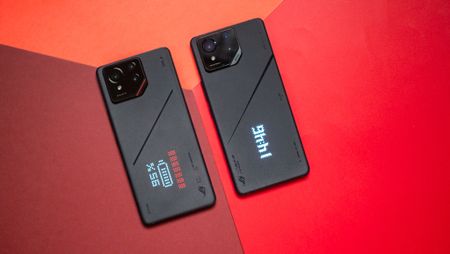 A little cheaperThe budget ASUS ROG Phone 9 FE is finally here with a 2023 chip and gaming AI
 -
For the hopefulThe ASUS ROG Phone 9 'FE' is rumored to have a launch on the horizon
-
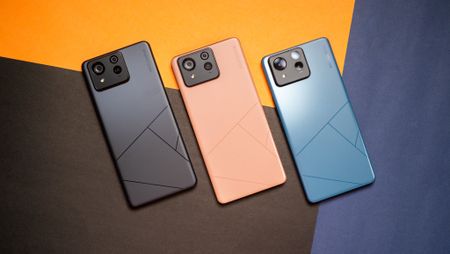 Ultimate ZenASUS Zenfone 11 Ultra review: Identity crisis
 -
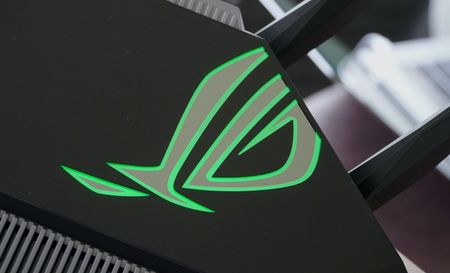 Asus ROG adds a new ultra-fast Wi-Fi 6E gaming router to its lineup
-


-
-
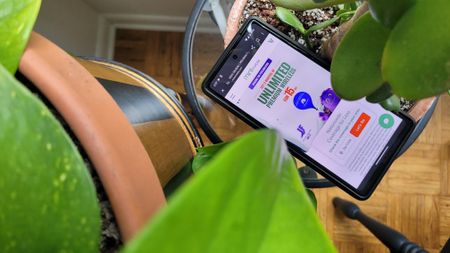 Last chanceMint Mobile’s best deal ends next week — claim up to a year of unlimited wireless for $15 per month (while you still can)
 -
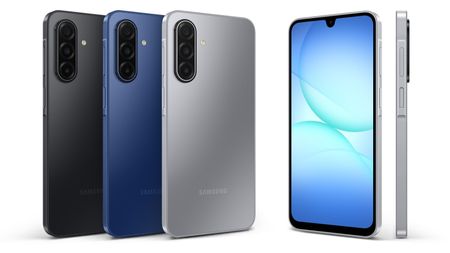 Keep it simpleMetro by T-Mobile wants to give you unlimited wireless AND a 2026 Samsung phone for just $40 per month — here's the deal
 -
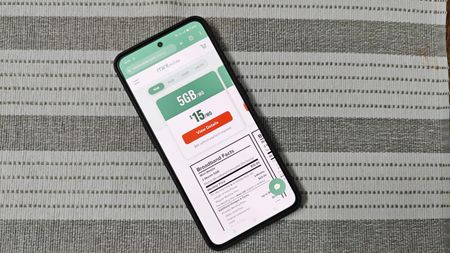 Choose wisely!The best MVNOs that use T-Mobile's network 2026
 -
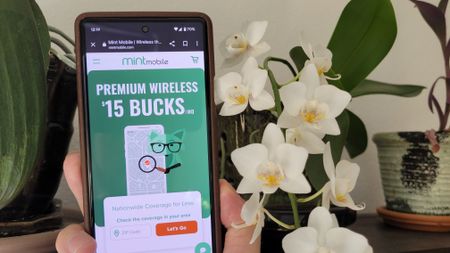 Minty savings!The best Mint Mobile deals of September 2026 — up to $500 off Pixel 11 phones, 50% off wireless, and more
 -
 Free phoneMetro by T-Mobile is giving away the Samsung Galaxy A37 for FREE — here's how to claim yours
 -
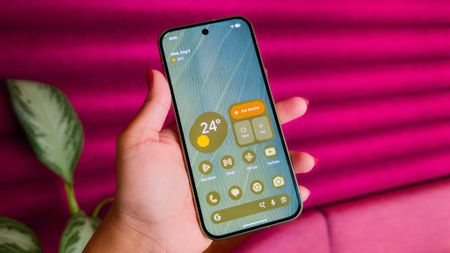 Join the partyI'm ranking the best T-Mobile deals of September 2026: free Galaxy Z Fold 8, Pixel 11 Pro, and more
 -
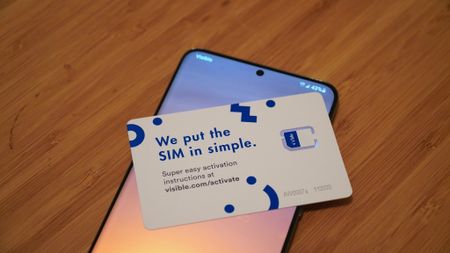 Lots of choicesBest cell phone plans 2026
 -
 DealsThe TOP 10 best Verizon deals of September 2026 — free Pixel 11 phones, Z Fold 8 discounts, and more
 -
 Travel in comfortThese 6 prepaid SIM cards for US tourists will take your 2026 travels to the next level
-


-
-
 It's not just youIf your Google Fi says your SIM isn't active, here's what's going on
 -
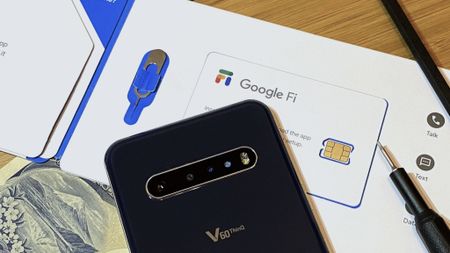 Lots of choices!The best Google Fi Wireless alternatives in 2026
 -
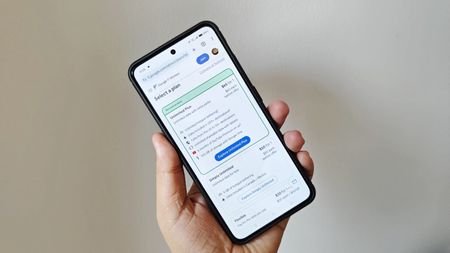 Save with Fi!Google Fi Wireless plans, deals, and prices: everything you need to know
 -
 AI power-upGoogle Fi is using AI to make your phone service less annoying
 -
Sharing is caring!Which MVNOs allow tethering?
-
 Tenth anniversaryGoogle Fi celebrates 10 years with a new affordable plan to take on T-Mobile
 -
 Ask JerryAsk Jerry: Will my phone work outside of the US?
 -
 Pixel 8a spottedThe Pixel 8a may have just appeared in a Google Fi Wireless ad
 -
 Two Great Options!Tello vs. Google Fi: Which flexible prepaid carrier is the best?
-


-
-
It works like, well, magicMagic Capture is the best feature in the Google Pixel 11 series -- and one of the best camera features in a decade
-
 Rescue Now, Pay Later?Google extends free Pixel 9 Satellite SOS for one more year
 -
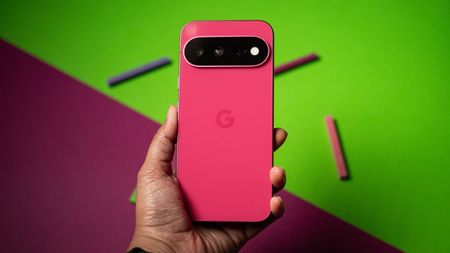 Still the kingHurry! Save $500 instantly on the Google Pixel 11 with a 12-month unlimited plan from Mint Mobile
Android Central Approved - Sponsored Offer Mint Mobile
-
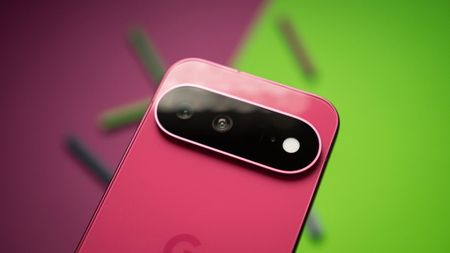 Still the kingGet $1,000 off the Google Pixel 11 with an eligible trade-in at T-Mobile
Android Central Approved - Sponsored Offer T-Mobile
-
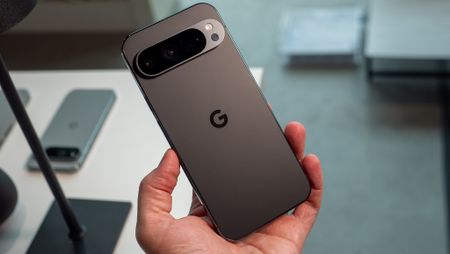 Flagship Pixels for lessGoogle is now selling refurbished Pixel 9 phones, and the prices are pretty tempting
 -
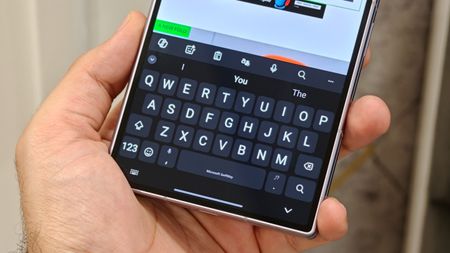 Clever Gboard workaroundThis unofficial port brings Pixel 11's Rambler to any Android phone2 Comments
 -
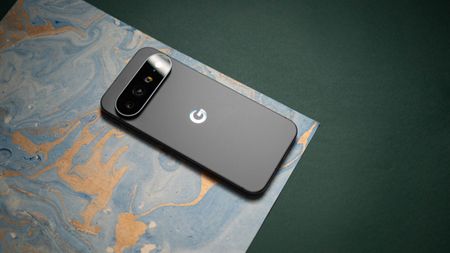 Big 12Looking ahead to the Pixel 12? Early leak talks display upgrades and more
 -
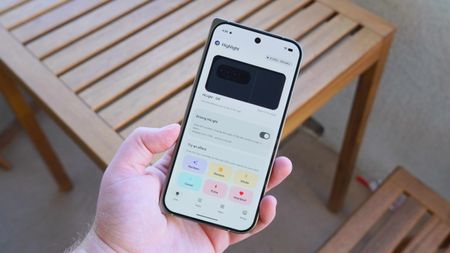 HiLight StudioThe Pixel 11's HiLight feature is too limited, but I fixed it with this free app
 -
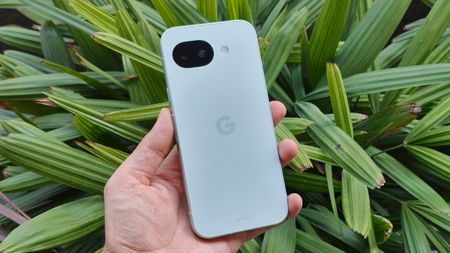 Pixel gets pricierGoogle just raised the Pixel 10a price by $100, and it's a hard pill to swallow
-


-
-
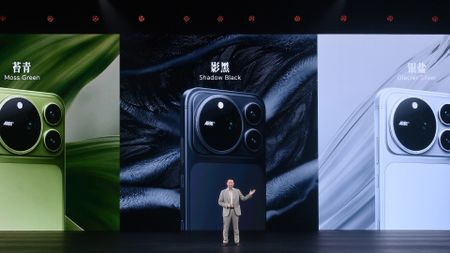 Pure CinemaHonor's Magic 9 Pro Max takes the ARRI cinematic route: spotlights 4K 60fps, 8,800mAh battery
 -
 Start capturingHonor's Magic 9 Pro Max debuts at Venice Film Festival: ARRI partnership will continue
 -
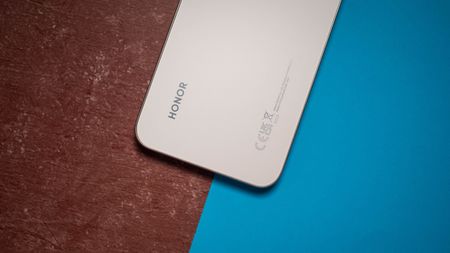 Defying the phone slumpGlobal smartphone sales hit a major slump, except for this Android phone brand
 -
 Hello, Robot PhoneHonor's Robot Phone is finally here: ARRI partnership, Agile Gimbal spotlight a new future
 -
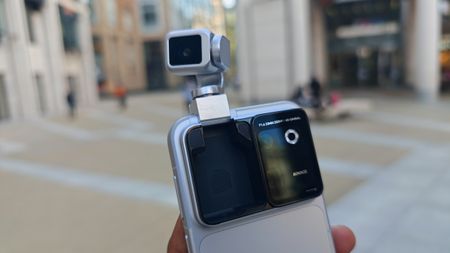 A different kind of phoneIs it a phone or a gimbal? This is Honor's new Robot Phone!
 -
 Serious durabilityI put this foldable Android phone through the ultimate durability test, and it refuses to die, even after being slathered in mud and tossed in the dishwasher
 -
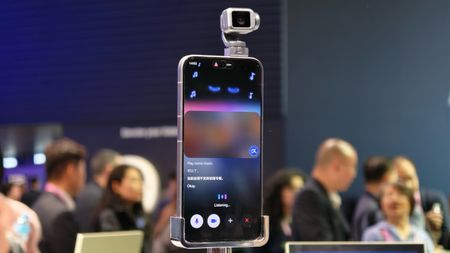 CinemaHonor's new era is cinema: major Robot Phone camera details, AiMAGE image engine confirmed
 -
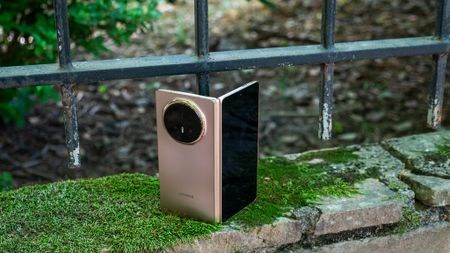 Head-to-HeadHonor's Magic V6 goes against Samsung's Galaxy Z Fold 8: this is how it fares3 Comments
 -
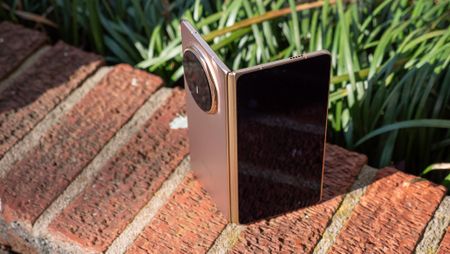 Looking to stunRumors say Honor's alleged 'Wide' foldable competitor has a top-notch battery
-


-
-
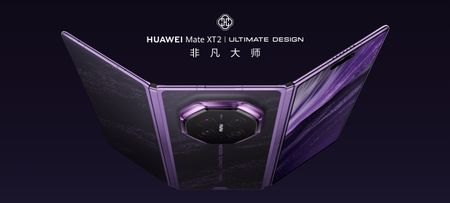 Just look at itHuawei just showed Samsung how a tri-fold should be done
 -
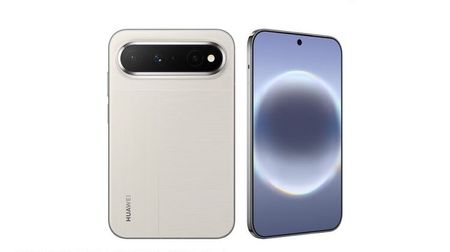 Huawei goes wideThe wide-screen revolution might soon come to a non-foldable phone near you
 -
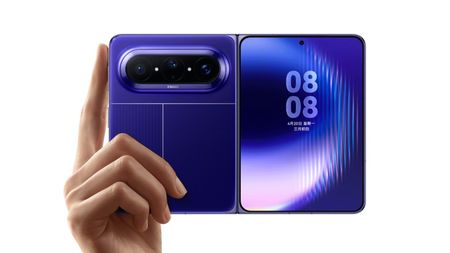 Wide is the new tallThe wide foldable is finally here, and it didn’t come from Samsung
 -
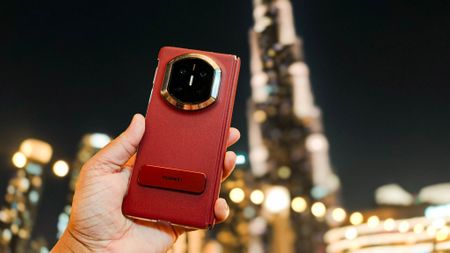 Soaring aboveI used Huawei's Mate X7 to take photos of the world's tallest building, and I'm convinced that this foldable has the best cameras
 -
 Coming BackHuawei's alleged Mate XT sequel might have some spicy upgrades up its sleeve
 -
 What could it be?Jackie Chan was spotted using a foldable on TikTok, and we've got our top suspects
 -
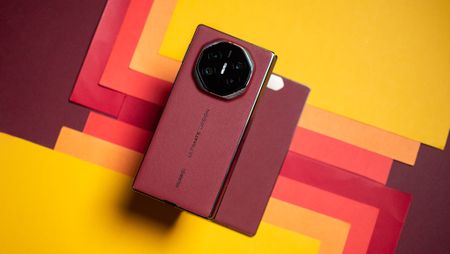 The bestHuawei Mate XT camera review: Putting all other foldables to shame
 -
 Why not both?Huawei's new flip phone blurs the line between foldables
 -
 Leveling upHuawei's tri-fold Mate XT is the most exciting phone I've used in a long time
-


-
-
 2nm race is onMediaTek's first 2nm flagship chip is here — meet the new Dimensity 9600 Pro
 -
 Powered-upMediaTek's Dimensity 9500s, 8500 surge with power for even more Android phones
 -
OVER 9000MediaTek's new powerhouse chip is the unicorn you'll never get to see2 Comments
-
 Flagship powerThe MediaTek Dimensity 9500 is the Android powerhouse you'd expect
 -
Chip launch confirmedMediaTek confirms the date for its next flagship chip launch, and the timing is interesting
-
Early DaysVery early MediaTek Dimensity 9500 benchmark leaves us waiting for more
-
 Agentic AIMediaTek highlights Dimensity 9400 Plus with edge-AI specs and 20% boost in Gen AI
 -
 Next-gen processorMediaTek's Kompanio Ultra will 'redefine' Chromebook Plus performance and AI
 -
 MediaTek unveils Dimensity 700 for budget 5G phones and a 6nm Chromebook chipset
-


-
-
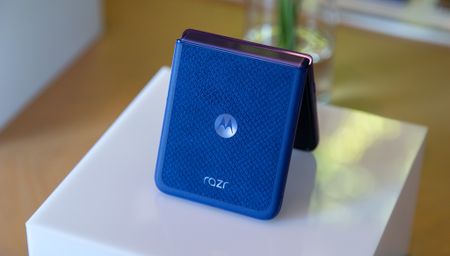 Massive UpdateAndroid 17 is here for the Moto Razr Ultra 2026: this is what you should know
 -
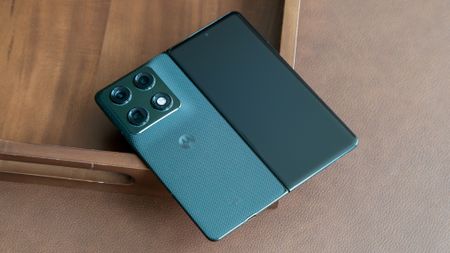 FlexingAlleged Moto 'Razr Flex' sounds like a wide fold, but smaller—leak talks specs
 -
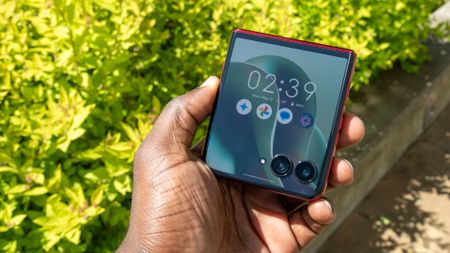 Don't miss itFor flip phone fans: the 'nearly perfected' Motorola Razr Ultra 2025 is $600 off at Best Buy today
 -
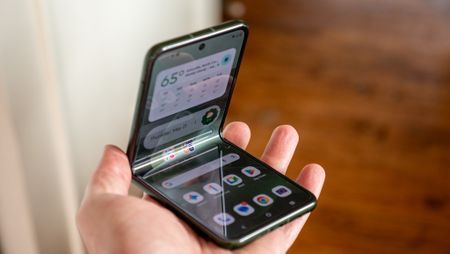 Foldable dominationThe latest Motorola foldable phones have finally come to Verizon — and the deals are impressive
 -
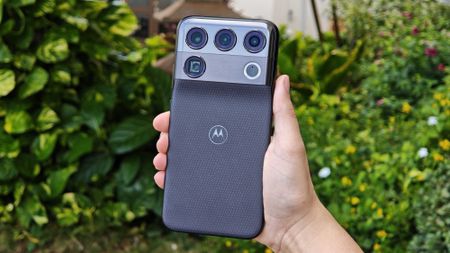 Teaser'We heard you, we heard media, we heard analysts': Motorola talks about why now is the time North America needs its premium Signature 27 phone7 Comments
 -
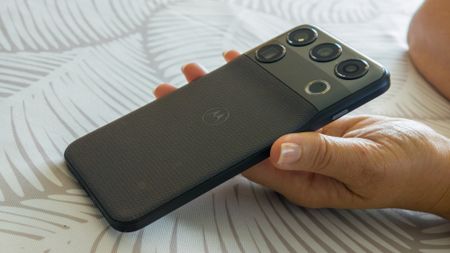 Privacy beyond PixelMotorola just gave privacy fans a big reason to consider the Signature 27
 -
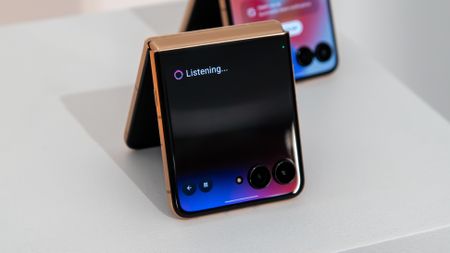 Qira is hereMotorola preps a huge Qira AI expansion to Signature, Razr with Android 17
 -
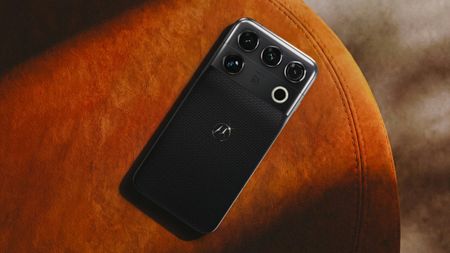 Motorola goes all-outThe Motorola Signature 27 is coming for Android's best flagships with some wild specs
 -
 Lasts all day, and then some: Motorola’s flagship Razr Fold packs an anxiety-squashing 43-hour battery life
Sponsor Content Created With Motorola
-


-
-
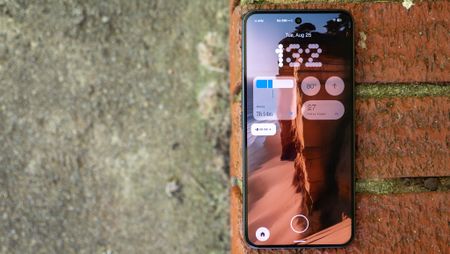 Rolling outBeta no more: Nothing OS 5 (Android 17) is rolling out for the Phone 3
 -
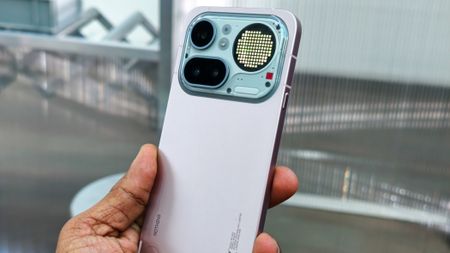 Turning headsForget the Pixel 10a - this is the best Android phone under $500, and it just scored a rare discount at Amazon
 -
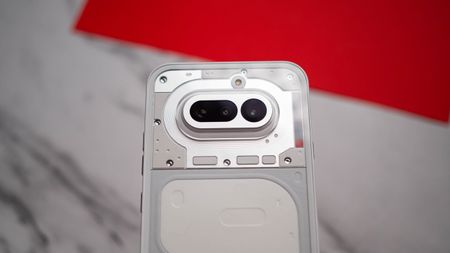 Enter the betaNothing expands Android 17 Open Beta to Phone 4a—full release is two months away
 -
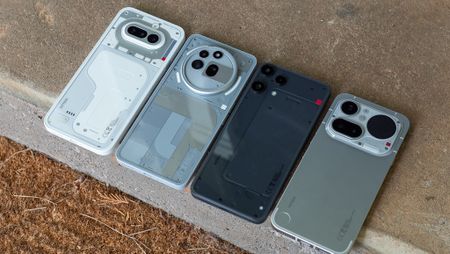 crowdsourcingYou can now test Nothing’s upcoming devices before launch
 -
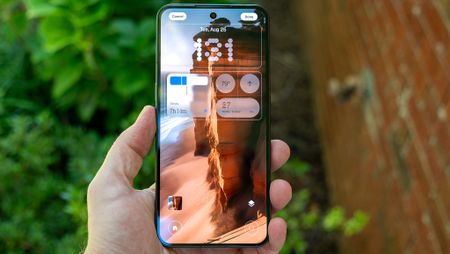 Fresh bit of NothingNothing OS 5 hands-on: A nip, a tuck, and a nice glow-up
 -
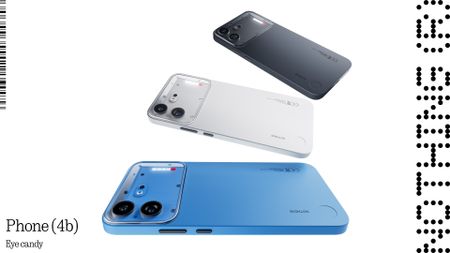 Budget phone playing flagshipThe Nothing Phone 4b is a flashy budget phone with flagship software promises
 -
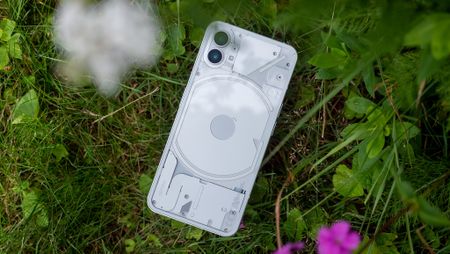 The Phone 1The end for the Phone 1: Nothing's final update hits the phone that started it all
 -
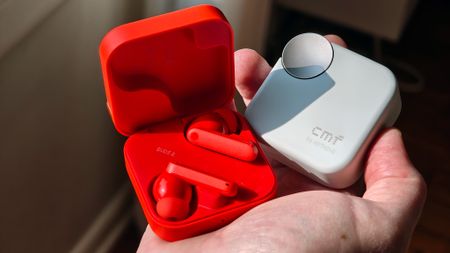 Prime BudsTGIF! Nothing CMF earbuds are as low as $19.99 (no kidding!) right now, but that deal ends today
 -
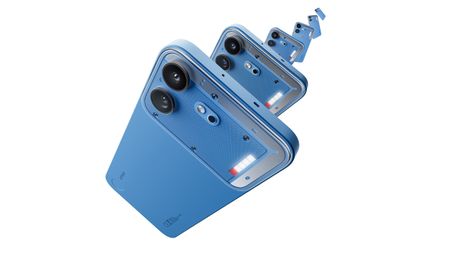 Take a lookNothing's Phone 4b design reveal parades a 'unibody' aesthetic, and I'm here for it
-


-
-
ColorOS Takes the WheelOnePlus rolls out Android 17 to the OnePlus 15 ahead of schedule
-
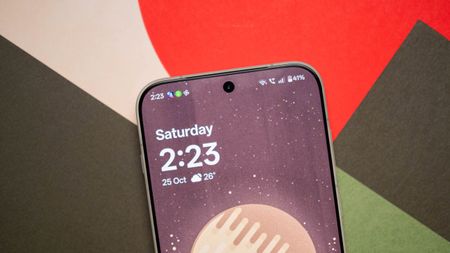 Built to be missedOnePlus 16 looks ready to impress, but its biggest problem isn't the hardware
 -
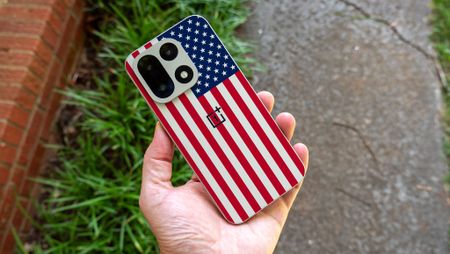 Pour one outWith OnePlus out of the picture, the US faces a huge smartphone dilemma for people like me
 -
 SettlingIt's official: OnePlus exits the US and Europe — but there is a silver lining4 Comments
 -
 One less flagship?OnePlus could bow out of the US and Europe soon
 -
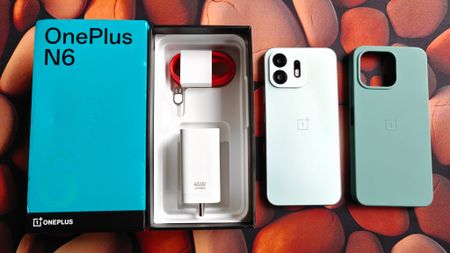 A complete unboxing experienceOnePlus N6 leak shows generous box contents as launch draws near
 -
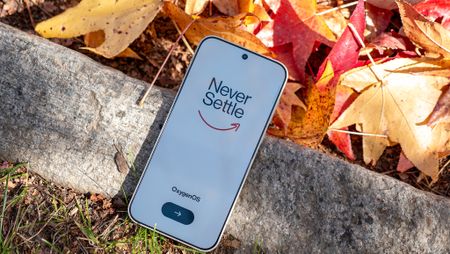 All screenThe OnePlus 16 might be the closest we've come to a bezel-free phone2 Comments
 -
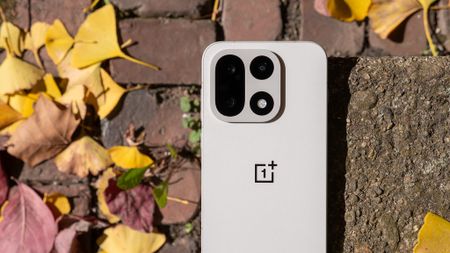 OnePlus x iPhoneThe OnePlus 15 is picking up one of Android's most useful sharing upgrades
 -
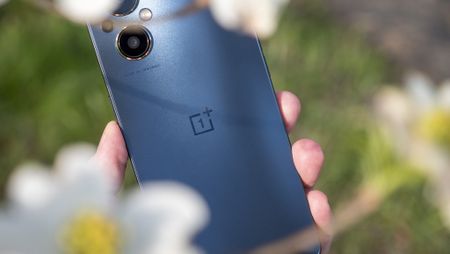 Returning to budget rootsOnePlus looks ready to dive deeper into the budget phone battle
-


-
-
Oppo goes all-outOppo's Find X10 Pro Max goes all out with three 200MP cameras and a massive battery
-
 Find the flowOPPO just confirmed a major Find X10 Pro Max detail, and I'm excited
 -
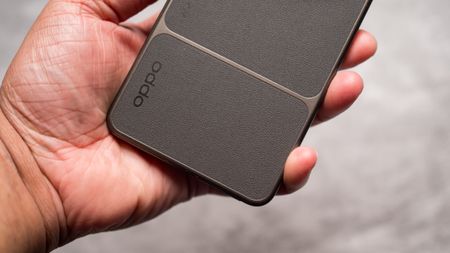 Triple 200MP madnessOPPO is putting three 200MP cameras on its next flagship phone
 -
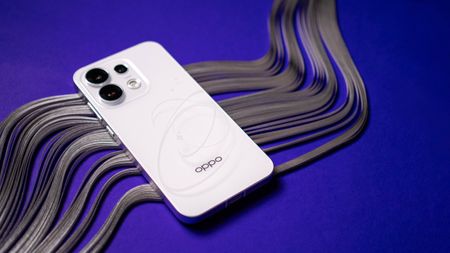 Just look at itOPPO's Reno 16 Pro proves you don't need a flagship to take amazing photos
 -
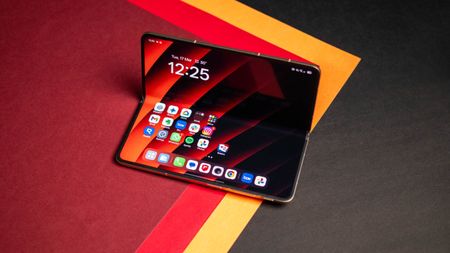 Oppo going wideLeak says OPPO has a 'Wide' foldable in the works, too, but you might have to wait
 -
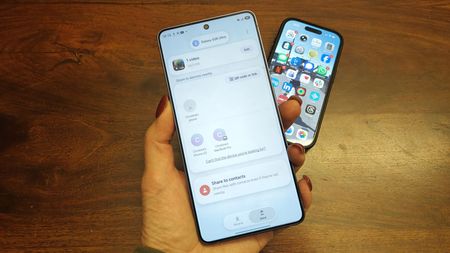 Finally expandingAirDrop sharing appears to be expanding beyond Pixel and Galaxy phones
 -
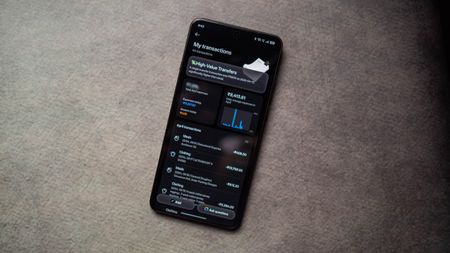 Sort it outI finally got a handle on my expenses thanks to this AI feature on the Find X9 Ultra
 -
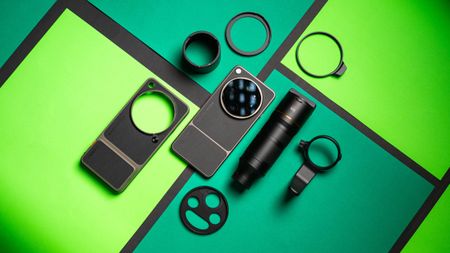 OPPO Find X9 Ultra review: This world-class camera is also a phone
 -
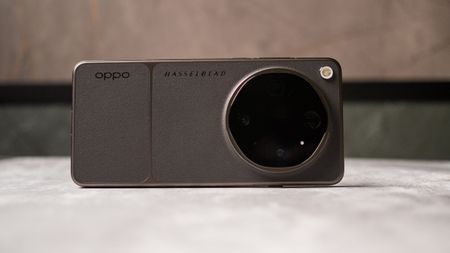 OPPO Find X9 Ultra hands-on: Is this the best camera phone of 2026?2 Comments
-


-
-
 Guilty, but not doneJury finds Arm guilty in licensing breach, Qualcomm awarded just $2 in total
 -
 Frenemies with siliconQualcomm and Arm are back in court, and your next phone is on the line
 -
 Summit7 cool things I saw at Snapdragon Summit 2026
 -
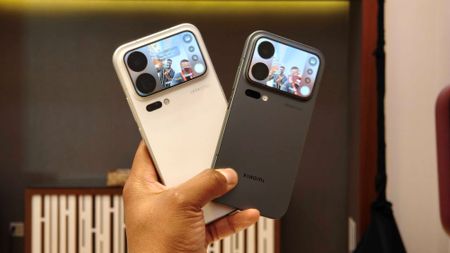 SamesiesQualcomm Snapdragon 8 Elite Extreme Gen 6 vs. MediaTek Dimensity 9600 Pro: Two sides of the same coin
 -
 Staying healthyBand together: Qualcomm founds 'Personal AI Health Alliance' with Global Health Connector and more
 -
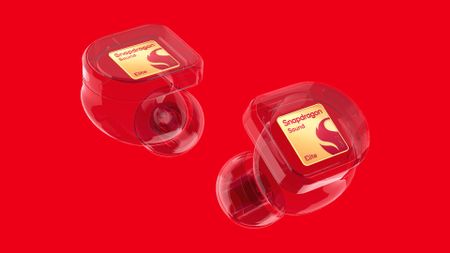 Snapdragon SoundQualcomm's premium audio leaps ahead with Snapdragon Sound Elite Gen 2 and its personal AI
 -
 Qualcomm raises the barSnapdragon 8 Elite Extreme Gen 6 is coming for the top Android phones
 -
 Stronger. Faster.Qualcomm's Adreno 'Neural Fusion' GPU will lean on AI to upgrade phone gaming
 -
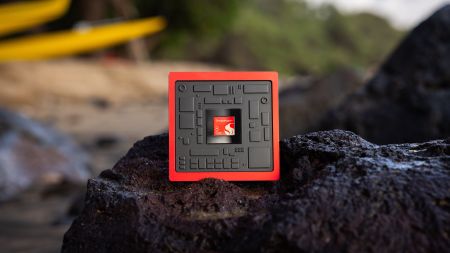 5GHz is happeningQualcomm just broke the 5GHz barrier with its next Snapdragon chip
-


-
-
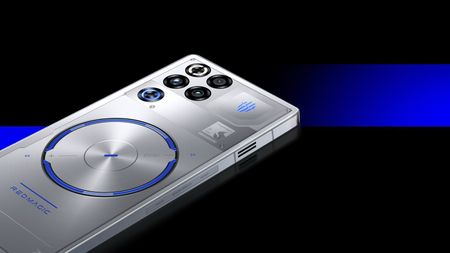 Liquid CooledRedMagic's 11S Pro is a gaming beast, and it's crazy to think Liquid Cooling is in this phone
 -
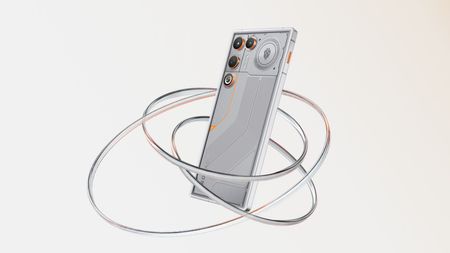 fresh faceRedMagic 11 Air Trace Edition is the same great gaming phone in a louder shirt
 -
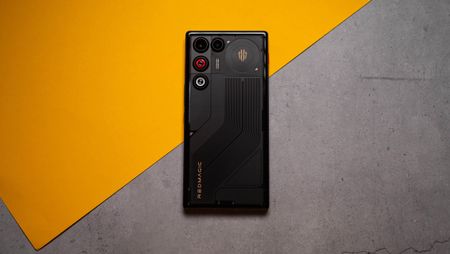 How ToThese four features make the Redmagic 11 Air a beast of a gaming phone
 -
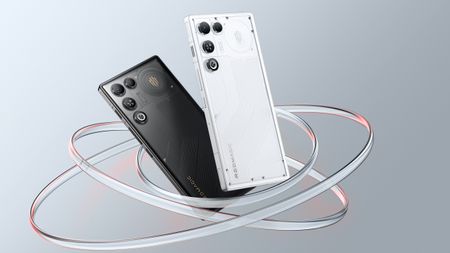 Slimmer, not weakerThe RedMagic 11 Air is surprisingly thin, and I’m obsessed with its massive 7,000mAh battery
 -
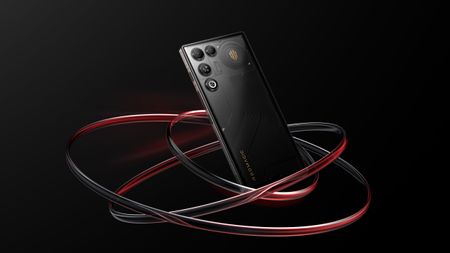 What're we playing?RedMagic 11 Air is a cool, crisp mobile gaming guru with the series' biggest 7,000mAh battery
 -
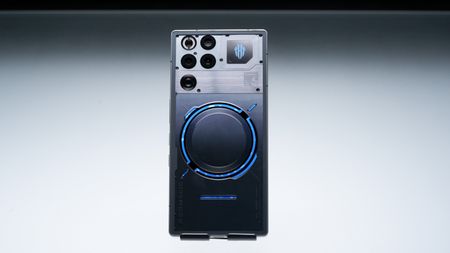 Cooling ReimaginedRedMagic just dropped a gaming phone with a literal water cooler inside
 -
 Stylish powerRedmagic 10S Pro review: Beating ASUS at its own game
 -
 Game TimeThere may be a REDMAGIC gaming tablet on the horizon with a smaller screen
 -
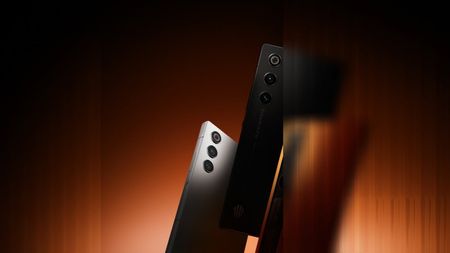 sleek and powerfulRedMagic's latest gaming phone is smart and powerful without the bulk
-


-
-
Still the kingSave a huge $220 on the Samsung Galaxy S26 FE at Verizon
Android Central Approved - Sponsored Offer Verizon
-
More problemsBattery drain in One UI 9? Some Galaxy S24 users are having a rough time
-
IssuesThat's a problem: Galaxy S26 Ultra suffers a horrendous setup bug after One UI 9
-
 rollout in progressGalaxy A36 owners can finally download the stable One UI 9 update
 -
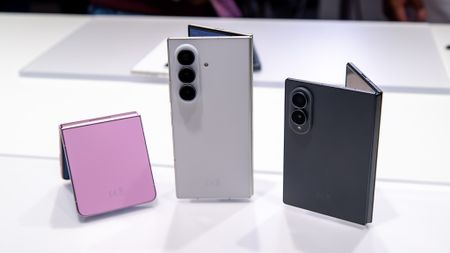 Sliding into 2027?Samsung could double the phones in the Galaxy Z series: 'Galaxy Z Slide' rumored
 -
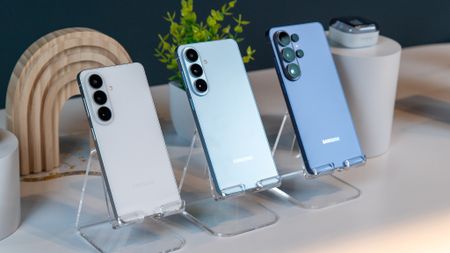 UncertainEarly Galaxy S27 launch? Maybe, but Samsung has a few issues to work out
 -
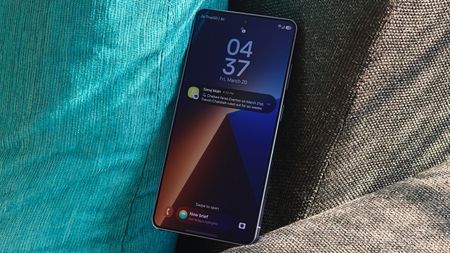 Early problemsOverheating issues may force Galaxy S27 Ultra to switch from Snapdragon to Exynos
 -
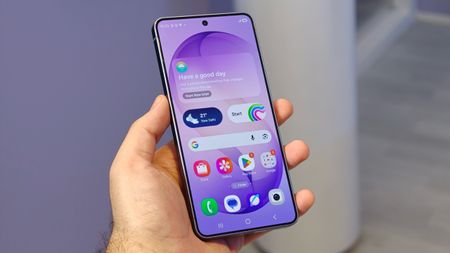 Taking it seriouslyGalaxy S27 Ultra might take eye strain seriously amid rumors of DC dimming
 -
 Better late than neverSamsung phones finally support Googlebook cross-device features
-


