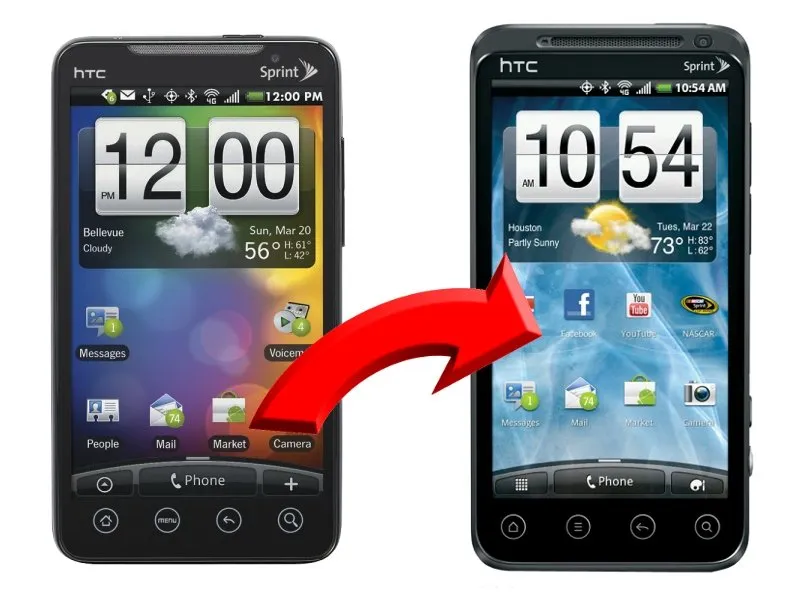
We know that many of you are going to be lined up bright and early come June 24, with one thing on your mind -- the EVO 3D. Can't say we blame you, it certainly looks to be one of this years best. We also know a lot of you guys will be retiring your EVO 4G to pick this bad boy up, and there will be questions about migrating all your "stuff" from EVO to EVO. That's where we come in.
There's a couple ways to go about transferring most everything over, some built in and some third party. The good news is, all of them are pretty easy. Hit the break and we'll sort them out.
Contacts, Calendar, and Mail
Google does this for you, maybe because they love us, or maybe they built a time machine and retro-copied iOS5 a few years ago. Since you have decided to use an Android phone, you should be using Google's cloud to sync these. We say it all the time, and we mean it -- nothing's easier. If you're not using the fluffy cloud now, you can still migrate everything over to it while you wait for the 24th.

OK, OK. Some of you just don't want to use the cloud. That's fine, you can still transfer everything over using HTC Sync and Windows Mail or Outlook. And with Sense 3.0 comes the Transfer app -- you can use Bluetooth to transfer your contacts and calendar events from your OG EVO 4G to the EVO 3D.
We still recommend using Google, just because it's so easy. But choice trumps all.
Text Messages
I'll bet you were expecting a recommendation about a great third party app here, but you're not getting it. You have Sense 3.0, and have no need for one. Use the same Transfer app mentioned above to copy all your text messages from your old phone to your new phone. Everything should be so easy.
Applications
Paid apps are no problem, they stay attached to your Google account. You can always find these by opening the Market app, pressing menu, then My Apps. The only requirement is that you're signed into the same Google account.
Free apps are another story. But no worries -- there are easy ways to get them on your new device. Firstly, this is built into Android. Dig through the settings, find the privacy settings, and make sure "Back up my data" is selected. Hopefully, when you sign into the Market on your EVO 3D, it will start re-installing your apps, as well as the application data you saved to the cloud. But to be honest, this is sort of hit-or-miss here. Maybe because we use so many different Android phones, or maybe it's just one of those "forever beta" projects. I wouldn't count on it working the way you want it to.
Edit: Commenter mrsimps tells us how to find this setting below. We're not sure why this line item was removed from the Evo settings, but here's how to rectify things.
Besides relying on the cloud, install an app like App List Backup from the Android Market. This backs up a list of the Android Market apps on your current phone, drops that list on the SD card, and allows you to re-download them from the My Apps tab in the Android Market once you have that data on your new phone's SD card. There are quite a few apps like this, and most of them work well and are free.
Note that unless you're rooted, you can't back up the application's data files for an easy restore. That's where we have to hope Google's cloud backup kicks in and does it's thing.
Settings
My advice is to not backup and restore settings from two different devices. It's an invite to issues, and not good ones. But if you insist, it can be done pretty easily. Google's "Back up my data" feature above does it when it works right, and you can also download backup apps from the Market. If i were to recommend one, it would be MyBackup Pro. I've used it, it works just like it says it will, and is well worth the $5.00 if you have to back up and restore your settings.
SD card data
Two easy choices here. You can pull the SD card from your old phone and drop it into your new phone, or you can copy all the data from one to the other. Just mount your old phone as a storage device (or eject the card and use a card reader), copy everything to a folder on your desktop, mount the new card and copy from that folder to the card. You won't need to format anything, the SD card is good to go right out of the box.
Be careful not to delete anything from your new SD card without looking at it though. Many phones store things like PC drivers, bundled movies or app data, and it's likely that a new copy of HTC Sync will be on the EVO 3D's card. Unless you know what you're doing, leave all that stuff alone.
Rooted users
Don't think that you're off the hook here and can just use Titanium Backup. If you get your EVO 3D on or close to launch day, it's probably not going to be rooted, so you can't restore anything. It's still a good idea to take a full backup, and when the EVO 3D is rooted you can restore your app data.
Of course there are other ways to do all of this as well. I'm simply telling you about the ways I have used and can vouch for. Migration from your old phone to the EVO 3D is pretty easy, and let's admit it -- we'll all enjoy playing with the phone while we're doing it. I also want to thank Danny for asking about this and giving the inspiration to write it up!

