


Latest about Samsung Galaxy

Issues A major setup bug after downloading One UI 9 completely disrupts a Galaxy S26 Ultra—Samsung was quick to respond.

rollout in progress The Galaxy A36 is getting One UI 9, but your update may take a while.

Sliding into 2027? Samsung's Galaxy Z foldable lineup could involve six phones in 2027, and one could "Slide."

Uncertain Galaxy Unpacked headed back to January? There's a chance, per these rumors, but Samsung still has its work cut out for it with uncertain Galaxy S27 Ultra upgrades.

Early problems The Galaxy S27 Ultra is reportedly overheating severely in tests with Qualcomm's Extreme Snapdragon chip. If unfixed, Samsung could be faced with an important decision.

Taking it seriously Eye strain has been a problem for Galaxy phones, but a rumor says Samsung's S27 Pro and Ultra might fix that.

Better late than never Google finally fixed Googlebook’s worst launch flaw by bringing seamless app streaming and notification sync to Samsung Galaxy phones.
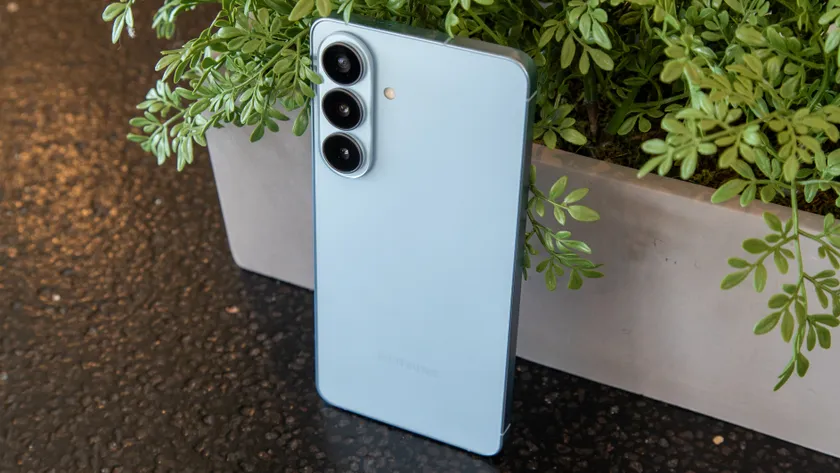
Fixing problems Samsung's October security update is rather tame for the Galaxy S26. Security fixes take over after an eventful One UI 9 release.

